
Appearance
Frequently Asked Questions
Will this app work on AutoCAD LT ? No
⚠️ AutoCAD LT Limitations
AutoCAD LT does not support any API features (including controlling drawings and databases with ActiveX, VBS, AutoLISP, Visual LISP, ObjectARX, JavaScript, and .NET).
Consequently, this application will not function on AutoCAD LT.
App Installed Location 📁
- The application files are installed to the following directory:
App Location
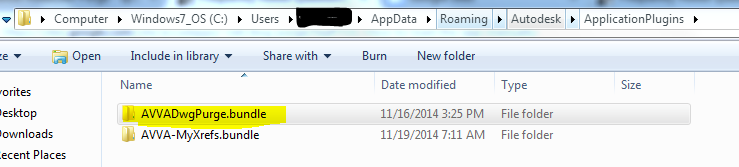
C:\Users\Username\AppData\Roaming\Autodesk\ApplicationPlugins\AVVADwgPurge.bundle
How to load the app manually ?
If you cannot run the commands or do not see the tool in the AutoCAD ribbon after installation, please try loading it manually:
- In the AutoCAD command line, type
NETLOADand press Enter. - Select
AVVADrawingPurge#.dllfrom the following location:C:\Users\Username\AppData\Roaming\Autodesk\ApplicationPlugins\AVVADwgPurge.bundle\Contents\Windows - Choose the folder based on the CAD version you have.
- Select the DLL file and click to load.
- Once the file is loaded, try to run the
DWG-PURGEorDWG-PURGE-BATCHcommand.
How to avoid manual loading ?
If you want to avoid loading the app manually for each session of AutoCAD, try the following.
- Download this LISP file and save it to your computer.
- At the command line, type
APPLOADand select the LISP file you downloaded (or drag and drop the LISP file into AutoCAD). - Click Load and close the dialog.
- Then at the command line, type
LoadDwgPurgeand press Enter.
I want to enable/disable purge while opening the drawing
If you want to enable/disable the purge while opening the drawing:
- Enter the
DWG-PURGE-BATCHcommand. - Go to the Drawing Purge Settings tab.
- In the General Options section, enable or disable Scan for DGN data while opening a drawing.
Where I can change the options for DWG-PURGE command
If you want to change the configurations for the purge commands:
- Enter the
DWG-PURGE-BATCHcommand. - Go to the Drawing Purge Settings tab.
App icons are not visible
After a successful installation of Drawing Purge, if you are not able to see the ribbon or menu, please try the following steps:
- At the command line, type
CUILOAD. This should bring up a window as shown in the below image.
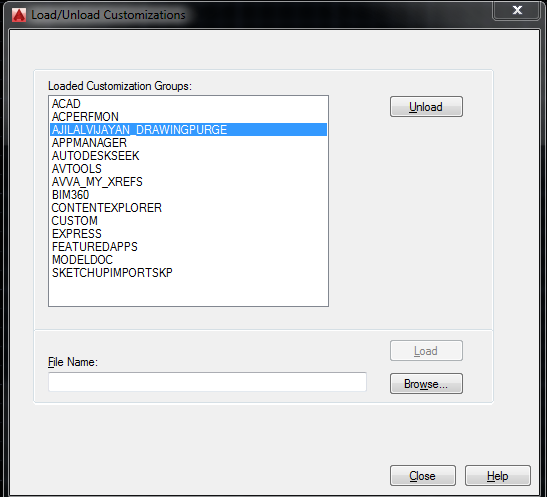
- If the drawing purge group is already there, click Unload.
- Click Browse and select
AjilalVijayan_DrawingPurge.cuixfrom the folder:C:\Users\Username\AppData\Roaming\Autodesk\ApplicationPlugins\AVVADwgPurge.bundle\Contents\Resources - Click the Load button.
- Close the CUILOAD window and check whether the app is visible in the ribbon.
- If the app is still not visible, restart AutoCAD and check again.
DGN data not purging
If the app is not deleting the dgn data after detecting it, then please do the following.
- Open the drawing.
- Copy and paste the below LISP code at the command line and hit Enter:
LISP Code
(dictremove (namedobjdict) "ACAD_DGNLINESTYLECOMP")
Then try the command again.
Purge Settings folder not found
By default, the purge settings files are saved to below location.
C:\Users\Username\AppData\Roaming\Autodesk\ApplicationPlugins\AVVADwgPurge.bundleContents\DwgPurgeSettings
Tip
You can save the folder DwgPurgeSettings to any location you prefer to share the purge settings with other users.
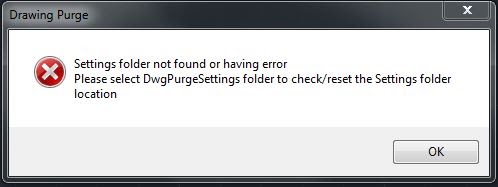
If you are receiving an error as shown below, which says the purge settings folder is not found,
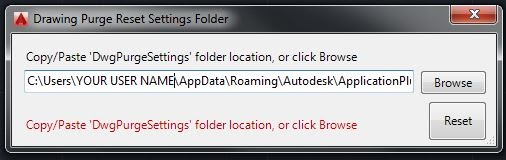
then click OK and then browse to the default location or the location where you have saved the settings folder.
After selecting the folder, click Reset button
eNullObjectId error
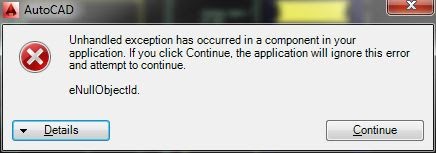
While using the DWG-PURGE command, if you encounter an eNullObjectId database error, please try the following recovery steps:
Method 1: Database Audit
- At the command line, type
AUDITand press Enter. - Fix any errors detected? [Yes/No]: Type
Yand press Enter. - This process may take some time depending on the overall size of the file.
- Once the audit operation finishes, save the drawing and close it.
- Open the drawing again and check whether the
DWG-PURGEcommand runs successfully.
Method 2: DXF Database Round-Trip
If the error continues to occur even after completing a database audit, follow these steps to clean and rebuild the file mapping:
- Open the problematic drawing, enter
DXFOUTat the command line, and save the DXF file to any temporary folder. - Open a completely blank drawing and import that file using the
DXFINcommand. - Inside this new file, enter
DXFOUTagain and save it as a secondary temporary file. - Open another fresh, blank drawing and import the secondary file using
DXFIN. - Save this final document as a standard
.dwgfile, then run theDWG-PURGEcommand.
Change System Variables
To change the System Variables values, please open the SysVarTemplate.dwg file and change the values in that drawing.
SysVarTemplte.dwg can be located in the app settings folder
C:\Users\Username\AppData\Roaming\Autodesk\ApplicationPlugins\AVVADwgPurge.bundleContents\DwgPurgeSettings