
Appearance
Commands
DWG-PURGE command
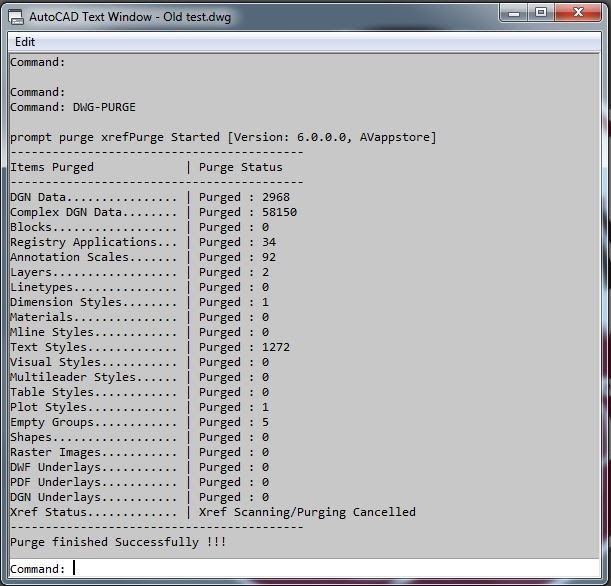
The DWG-PURGE command purges the current drawing of its unused AutoCAD items as well as unreferenced DGN-related complex linetypes and data.
To purge the current drawing, enter DWG-PURGE at the command line. Once the purging process is complete, the AutoCAD Text Window will automatically pop up to display the results summary:
Performance Tip
If the standard DWG-PURGE command is taking an unusually long time to process a large or heavy drawing, use the batch processing engine with the DWG-PURGE-BATCH command instead.
While running DWG-PURGE, if the host drawing contains attached External References (Xrefs) that carry unused DGN data, a dialog box will display a list of the affected Xrefs. You will be given the option to either recursively purge those background Xrefs or bypass them.
DWG-PURGE-BATCH command
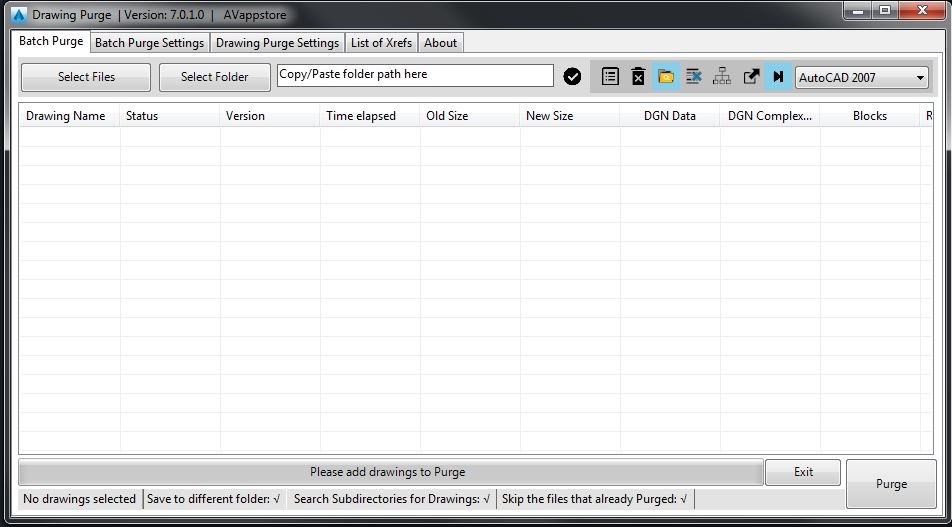
The DWG-PURGE-BATCH command is used to purge multiple drawings simultaneously. The application processes these files sequentially by opening and cleaning them efficiently in the background.
How to identify the presence of corrupted DGN Linetypes or Text Styles?
If a drawing is infected with unreferenced DGN data, you will typically notice one or more of the following symptoms:
- Performance Lags: It takes significantly longer than usual to copy or paste objects to the clipboard.
- Bloated File Size: The drawing file size remains excessively heavy, even if it contains very little geometry or data.
- Unused Linetypes: The Linetype Manager dialog box displays a vast number of unknown, unreferenced linetypes that cannot be purged natively.
- Unused Text Styles: Multiple unfamiliar text styles clutter the Text Style drop-down list.
Batch Dialog Box
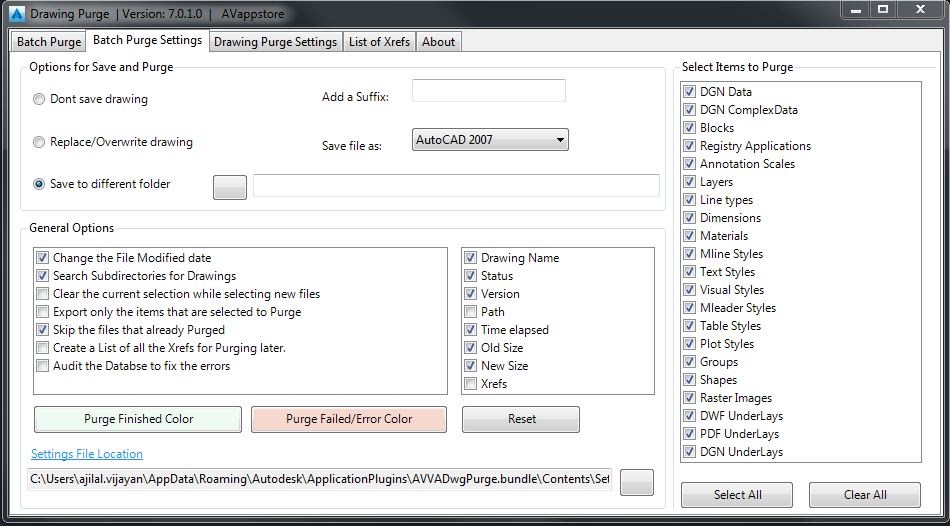
Batch Settings
DWG-PURGE-CONSOLE command
This commad can be used, while using the new script mode in DWG-PURGE-BATCH